


How to Use Gemini AI on Android — Step-by-Step Guide
Learning how to use Gemini AI is simple, and this guide shows you exactly how to get started, use its main features, and get better results from your prompts.
Artificial intelligence is no longer something that only tech experts use. Today, anyone with an Android phone can access powerful AI tools within seconds.
One of the most popular AI assistants available right now is Google Gemini. Developed by Google, Gemini helps users write content, answer questions, summarize information, generate ideas, and complete everyday tasks faster.
The best part? You can use Gemini directly on your Android device. Whether you’re a student, content creator, freelancer, or business owner, learning how to use Gemini AI can save time and improve your productivity significantly.
In this guide from Qubee Online+, you’ll learn how to install Gemini, set it up, understand its features, and get better results from your prompts.
Also check: ChatGPT vs Google Gemini vs Claude: Which AI Is Best in 2026? and How to Write the Perfect AI Prompt (ChatGPT Prompt Guide).
Nowadays one of best and most liked AI chatbot tool is Google Gemini AI. It loved by many peoples, today let’s discover about Gemini.
What Is Gemini AI?
If you’re wondering how to use Gemini AI, the process is simple: open Gemini, ask a clear question, and continue the conversation with follow-up prompts.
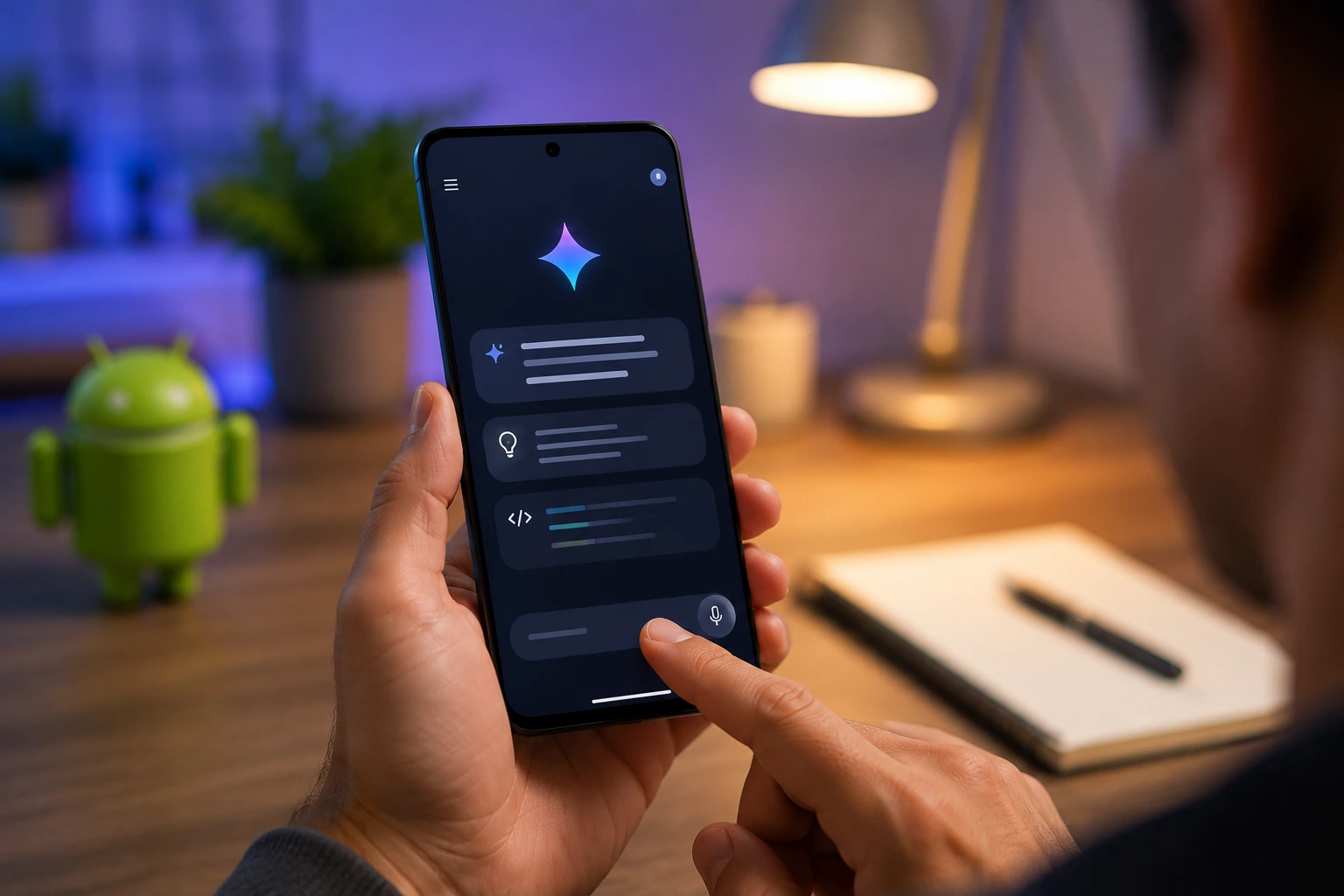
Gemini AI is Google’s advanced artificial intelligence assistant. Instead of searching through multiple websites, you can ask Gemini questions in natural language and receive instant, organized answers.
For example, Gemini can help you:
- 📧 Write professional emails and messages
- 📝 Create blog outlines and content drafts
- 📄 summarize long articles and documents
- 🌐 Translate languages quickly
- 📱 Generate social media captions
- 🔢 Solve maths problems step by step
- 📖 Explain difficult topics in simple language
- 💡 Brainstorm business ideas and strategies
Because Gemini understands conversational language, it feels more like chatting with a helpful assistant than using a traditional search engine.
How to Use Gemini AI on Android
Many Android users are switching to Gemini because it integrates seamlessly with Google’s entire ecosystem. It works alongside the services most Android users already use every day:
Gemini also continues improving with new features and updates. For users already relying on Google products, the experience feels completely seamless.
What Do You Need Before Using Gemini?
Before installing Gemini, make sure you have a few basics ready.
✅ Requirements Checklist
- 📱 An Android phone (Android 10 or later recommended)
- 📧 A Google account (Gmail)
- 📶 An active internet connection
- 🔄 Updated Android software for best performance
- 💾 Enough storage space for the app (around 100MB)
In most cases, setup only takes a few minutes. Once everything is ready, you can begin using Gemini immediately.
How to Install Gemini AI on Android — Step by Step
The installation process is simple. Follow these steps carefully.
Open Google Play Store
First, launch the Play Store on your Android device. Then tap the search bar at the top and type Gemini.
Download Gemini
Look for the official Gemini app by Google LLC. Tap Install — the app will begin downloading automatically. Make sure you are downloading from Google and not a third-party copy.
Open the App
When installation finishes, tap Open. You will see the Gemini welcome screen. The interface is clean and straightforward — no confusing menus.
Sign In with Google
Sign in using your Google account. If you’re already logged into your phone with a Google account, this step may happen automatically with just one tap.
Accept Permissions & Start
Gemini may request certain permissions such as microphone access for voice conversations. These help the app provide personalised assistance. Once approved, setup is complete and you can immediately start chatting.
✅ Also Available on iPhone
Gemini also has an official app for iPhone and iPad users.
How to Make Gemini Your Default Assistant
Many Android users want Gemini to replace Google Assistant as their default AI helper. Fortunately, this process is easy.
| Step | What to Do |
|---|---|
| 1 | Open Settings on your Android device |
| 2 | Go to Apps → then tap Default Apps |
| 3 | Select Digital Assistant App |
| 4 | Choose Gemini from the list and confirm |
Now you can access Gemini more quickly whenever needed — including by long-pressing the home button on many Android devices.
Understanding the Gemini Interface
When you open Gemini, you’ll notice a clean and simple design. Unlike complicated productivity apps, Gemini focuses entirely on conversation. Here are the key sections:
Because the interface is so straightforward, most beginners learn it within minutes.
Your First Conversation With Gemini
Starting a conversation is simple. Type any question into the message box and Gemini responds within seconds. Here are some great first prompts to try:
“Explain artificial intelligence in simple words”
“Create a study schedule for next week”
“Give me 5 online business ideas”
“Write a professional email requesting a meeting”
If the answer isn’t exactly what you need, ask a follow-up question in the same chat. This often improves the result significantly — Gemini remembers your previous messages within a conversation.
Best Ways to Use Gemini AI on Android
Gemini can help with many daily tasks. Here are the most useful examples.
Writing professional emails takes time. Fortunately, Gemini can create drafts in seconds. Simply describe what you need and Gemini writes a complete, polished email ready to send.
Content creators use Gemini for brainstorming blog ideas, video topics, social media captions, product descriptions, and article outlines. This makes content planning faster and easier.
Many users treat Gemini like a personal tutor. It can explain science, mathematics, technology, business, and history — and you can always ask for a simpler explanation if the first one is too complex.
Gemini supports multiple languages. You can translate words, sentences, articles, and emails quickly. For the Oromo/Ethiopian community, this is especially useful for working across English and local languages.
Finding information online can be overwhelming. Instead of opening multiple websites, ask Gemini for a summary on any topic. Research becomes faster and far more organized.
How to Write Better Gemini Prompts
Understanding how to use Gemini AI effectively is not just about asking questions. The way you write your prompts can greatly affect the quality of the answers.
Prompt quality greatly affects the results you get. Here are four essential techniques.
How to Use Gemini AI With Better Prompts
If you’re unsure where to start, copy and paste any of these prompts directly into Gemini.
Once you understand how to use Gemini AI on Android, you can use it for much more than answering simple questions.
| Goal | Prompt to Try |
|---|---|
| ⚡ Productivity | “Create a daily productivity schedule for a student who studies and works part-time.” |
| ✍️ Blogging | “Give me 20 blog post ideas about Android apps that beginners would find useful.” |
| 📖 Learning | “Explain cloud computing in simple English with a real-world example.” |
| 💼 Business | “Suggest 5 low-cost online business ideas that a student in Ethiopia can start.” |
| 💻 Study | “Create a 4-week study plan for learning JavaScript from scratch.” |
Gemini Features Many Users Don’t Know About
Although chatting is the main feature, Gemini offers additional tools that are easy to miss.
Common Mistakes Beginners Make
Avoiding these mistakes immediately improves your Gemini experience.
- ❌ Asking very short questions — Short prompts produce generic answers. Adding details always improves quality.
- ❌ Expecting perfect accuracy on everything — AI systems can occasionally make mistakes. Always verify important information, especially for medical, financial, or legal matters.
- ❌ Ignoring follow-up questions — Many users stop after the first answer. Asking follow-up questions in the same chat often dramatically improves results.
- ❌ Using AI without context — Always explain what you are trying to achieve. Context helps Gemini understand your goal and produce a more relevant response.
Gemini Free vs Gemini Advanced
Many users start with the free version. For beginners, the free plan is usually more than sufficient.
| Feature | Free | Advanced |
|---|---|---|
| Basic AI Chat | ✓ | ✓ |
| Image Understanding | ✓ | ✓ |
| Google App Integration | ✓ | ✓ |
| More Powerful AI Models | ✗ | ✓ |
| Extended context / longer docs | ✗ | ✓ |
| Priority access & advanced tools | ✗ | ✓ |
💡 Recommendation
Most users should start with the free plan and upgrade only when they find themselves needing more power. The free version is genuinely capable for everyday use.
📖 More Guides from Qubee Online+
Frequently Asked Questions
Final Thoughts
Now that you know how to use Gemini AI, you can start using it for writing, learning, research, translation, and everyday productivity.
Gemini AI makes advanced artificial intelligence accessible to almost everyone. Getting started on Android requires only a few minutes. Once installed, you can use Gemini to write content, learn new skills, organise projects, answer questions, and improve productivity every day.
More importantly, better prompts lead to better answers. Start with simple requests, experiment with different tasks, and continue refining your approach. Before long, you’ll discover why millions of Android users rely on Gemini every single day.
Install it. Try it. Let AI work for you. 🤖
📌 Download Gemini AI Right Now — Free
Available on both Android and iPhone. No payment required. Sign in with your Google account and start your first conversation in under 2 minutes.